The xGallery module arranges images in evenly aligned rows as a block. Each row in such a block has the same height, but the images inside it can have different widths. This is the layout style you see on photo sites like Flickr or Google Photos.
The photos you take are usually a mix of landscape and portrait orientations. A simple grid would have to crop them or leave gaps. J1 xGallery solves this by keeping each image in its original shape and adjusting the widths so every row fills the page neatly.
15-60 Minutes to read
| xGallery is the name of the J1 module. It is built on the open source library Justified Gallery (version 3.8.0), which J1 ships in an extended form (version 3.8.19) for the J1 Template version 2027.0.5. The extended library can do more than the original one: a manage bar with an item list and an editor, saving the gallery items in the browser, search and sort, dialogs to rate, edit and remove single items, and drag-and-drop import of image files. These additions are marked as J1 extension on the following pages. The idea of providing this documentation is not to simply copy the original Justified Gallery pages. For better readability and usability, all pages are restructured and enhanced by code examples or improved description texts. |
Overview
The xGallery module arranges images in evenly aligned rows as a block. Each row has the same height, but the images inside a row can have different widths. Because every image keeps its original shape, landscape and portrait photos sit together without being cropped, and each row is stretched so it fills the full width of the page. This is the layout style you see on photo sites like Flickr or Google Photos.
The xGallery API is the set of options, methods and events you can use from JavaScript to build and control a gallery. In the J1 Template you normally do not call this API yourself. Instead, you write a few YAML settings and the J1 Gallery adapter turns them into the correct JavaScript for every gallery on the page. Reading this manual is still useful, because the options you set in YAML use the same names as the API options described on the following pages.
In J1, a gallery is configured with three YAML files. They are merged together in the order shown below, and later files override earlier ones (this is called the inheritance chain). A key you leave out of a higher file is simply inherited from the file above it:
_data/modules/defaults/gallery.yml-
The built-in default settings that apply to every gallery (for example the default
rowHeight, the lightbox type, and the video player options). You normally do not edit this file. _data/modules/gallery_control.yml-
Your own settings, one entry per gallery (the gallery
id, itstype, the row height and gutters, the lightbox, and so on). Here you only need to write the values that differ from the defaults. _data/modules/gallery_media.yml-
The content of each gallery (the list of images or videos). Content is matched to a gallery by its
id.
| This three-file layout mirrors the Masonry module ( |
Every gallery has a type that decides what it shows:
image-
A gallery of photos, optionally opened in a lightbox when clicked.
video-
A gallery of videos. The extra key
videochooses the source:html5for self-hosted video files, oryoutubefor videos hosted on YouTube. The videos open in a lightbox and play in a VideoJS player. The lightbox is lightGallery by default, or PhotoSwipe when the gallery setslightbox.type: ps.
A few keys tell J1 where the files are. They are set per gallery in gallery_control.yml:
id-
The unique name of the gallery. The same
idis used ingallery_media.yml(to find the content) and on the page (to place the gallery). image_base_url-
The folder of the images. The address of an image is built as
<image_base_url>/<file>. For a video gallery this is the folder of the poster images (the still pictures shown on the tiles).Give the full folder, for example
/assets/image/my_gallery, not only a server address likehttp://localhost:40000. If the folder part is missing, every image address is wrong and the gallery stays empty. The browser console then shows a warning that names the gallery.Older files may still use the key
image_base_path. It works as a fallback, butimage_base_urlis the key to use. video_base_path-
The folder of the video files (only for
video: html5). YouTube videos are written as full addresses ingallery_media.ymland need no folder. enabled-
Switches a gallery on or off. Only the value in
gallery_control.ymlcounts. Theenabledkey ingallery_media.ymlis ignored, so it cannot switch on a gallery that the control file switches off.
Features
The xGallery module for J1 provides the following key features:
| Name | Description |
|---|---|
| Images are placed into rows of equal height. Each row is stretched to fill the full page width, so there are no ragged edges on the right. |
| Every image keeps its original shape. Landscape and portrait photos can be mixed freely without being cropped. |
| When the browser window is resized, the gallery rebuilds itself to fit the new width. |
| An optional caption can appear over an image when the mouse is over it. |
| A gallery can open its images or videos in a lightbox. J1 supports PhotoSwipe ( |
| The same module builds galleries of photos, of self-hosted HTML5 videos, or of YouTube videos. |
| Optional CSS effects (grayscale, contrast, brightness) can be applied to the gallery images. |
| A bar above the gallery with a title, the number of items, a button that opens a list of all items, and a button that opens an editor. Switched on with |
| The gallery items can be saved in the browser (localStorage). Changes a visitor makes (add, edit, remove) are still there after a page reload. The items can also be exported to a JSON file and imported again. |
| A search field and a sort list above the gallery. Only the matching items are shown, in the chosen order. Switched on with |
| Small buttons on every tile (and in the item list) open dialogs to give an item 1 to 5 stars, to change its title, description, category and tags, or to remove it. This works for images and for videos. |
| In the editor, image files, whole folders, or image links from another page can be dropped onto a drop area to add many items at once. |
Initialization
When the gallery’s HTML is on the page, xGallery is started by calling justifiedGallery() on the gallery element and passing the options you want:
// init xGallery
$('#myGallery').justifiedGallery({
  rowHeight: 150,
  margins:   1,
  lastRow:  'nojustify'
});
You can also react to the moment the layout is finished by listening for the jg.complete event:
$('#myGallery')
  .justifiedGallery({ rowHeight: 150 })
  .on('jg.complete', function () {
    // the gallery layout is ready
  });
Initialisation in J1 Template
In a J1 site you do not write the call above yourself. The J1 Gallery adapter (gallery.js) builds it for you from your YAML configuration.
This is what happens, step by step:
-
When the site is built, J1 merges the three YAML files for every gallery (defaults, then your control settings, then the media content) and writes the HTML of all enabled galleries into one data file:
<xhr_data_path>/index.html(default/assets/data/gallery/index.html). -
On the page, the macro
gallery::<id>[]only places an empty placeholder (<id>_parent). When the page loads, the adapter fetches the HTML of that one gallery from the data file (AJAX) and puts it into the placeholder. -
The adapter waits until the page is ready and the HTML has arrived.
-
It starts the library for every gallery whose
enabledkey istrueingallery_control.yml. It passes the keys of thegallery_optionsblock (guttersbecomesmargins) and, when they are set, the J1 extension blocksstorage,manageandsearchand the image folderimage_base_url. -
When the layout is finished (the
jg.completeevent), the lightbox takes over the clicks:-
lightGallery (
lightbox.type: lg, the default) is attached by the adapter. -
PhotoSwipe (
ps) and Lightbox2 (lb) attach themselves, because the generated HTML already carries the attributes they look for. For PhotoSwipe galleries the adapter only checks that this worked and writes a warning to the browser console if it did not.
-
| The gallery HTML is created when the site is built, not when the page is opened. After you change The J1 extensions (manage bar, search bar, dialogs) are different: they are built in the browser at runtime and need no rebuild of the data file. |
You can still reach a running gallery from JavaScript. The library stores its controller (the object that runs the gallery) on the gallery element, so you can get it with jQuery using $('#<your_gallery_id>').data('jg.controller').
To see the final settings a gallery runs with (after all three files are merged), type this in the browser console:
j1.adapter.gallery.getInstanceOptions('jgMegaCities')A minimal gallery
To add a new image gallery to a J1 site you need three small steps.
Step 1 — describe the gallery in _data/modules/gallery_control.yml. Add a new entry to the list settings.galleries:
settings:
  galleries:
    - gallery:
      enabled:                  true
      id:                       myGallery
      type:                     image
      image_base_url:           /assets/image/my_gallery
      gallery_options:
        rowHeight:              200
        gutters:                3
      lightbox:
type: ps| Watch the indentation. The keys of one entry ( |
Step 2 — list the images in _data/modules/gallery_media.yml, using the same id:
settings:
  galleries:
    - gallery:
      id:                       myGallery
      images:
        - image:
          file:                 photo_1.jpg
          width:                1920
          height:               1280
          caption_text:         My first photo
          description:          <h3>My first photo</h3>
        - image:
          file:                 photo_2.jpg
          width:                1280
          height:               1920
          caption_text:         My second photo
          description:          <h3>My second photo</h3>
The image files must be in the folder named by image_base_url (here: /assets/image/my_gallery/photo_1.jpg, …). The caption_text is shown on the tile, the description in the lightbox.
Step 3 — place the gallery on a page with the AsciiDoc macro and load the needed resources in the front matter of that page:
---
resources: [ gallery, photoswipejs ]
---
.My Gallery
gallery::myGallery[]
Use lightgallery instead of photoswipejs for galleries that keep the default lightbox (lg). Then rebuild the site.
Getting Started
This page shows how xGallery works with plain HTML and a small <script>. It is useful for understanding the options, even though in a J1 site you do not write this code by hand.
| In J1 you configure a gallery through YAML, not through a |
Here we have a div, with the id basicExample, that holds a list of links pointing to full-size images. Inside each link there is a thumbnail. When
the library runs, the thumbnails are resized so they fill the whole row (this filling is called justification).
| In J1 you never write this HTML yourself. J1 generates it from the image list in |
<div id="basicExample">
    <a href="path/to/image1.jpg">
        <img alt="caption for image 1" src="path/to/image1_thumbnail.jpg"/>
    </a>
    <a href="path/to/image2.jpg">
        <img alt="caption for image 2" src="path/to/image2_thumbnail.jpg"/>
    </a>
    ...
</div>
The most important option of the module is rowHeight (see Properties). Say you set a height of 160px — the algorithm then tries to build rows about that tall:
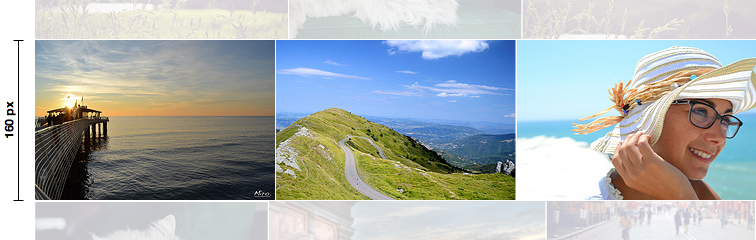
Justification may resize the images a little, so the real row height can end up slightly different from 160px. In other words, rowHeight is your preferred height (a lower bound). You can use the maxRowHeight option to put an upper limit on the row height; but remember that this option can crop images if they would have to be bigger to be justified.
The algorithm builds one row after another until it reaches the last one. That last row may not have enough images to fill the whole width. With the lastRow option you decide what happens: leave a blank space, justify the images anyway, or hide the last row if there would be too much empty space.
The next example uses smaller images (rowHeight: 70), does not justify the last row (lastRow: 'nojustify'), and uses a margin of 3px between images (margins: 3):
<div id="example" class="justified-gallery">
    <a href="path/to/image1.jpg">
        <img alt="caption for image 1" src="path/to/image1_thumbnail.jpg"/>
    </a>
    <a href="path/to/image2.jpg" title="Just in a dream Place">
        <img alt="caption for image 2" src="path/to/image2_thumbnail.jpg"/>
    </a>
    ...
</div>
<script>
    $('#example').justifiedGallery({
        rowHeight : 70,
        lastRow : 'nojustify',
        margins : 3
    });
</script>
In a J1 site you would write the same settings as YAML instead. Note that in J1 the spacing key is called gutters (the adapter maps it to the library’s margins option for you):
# _data/modules/gallery_control.yml
settings:
  galleries:
    - gallery:
      enabled:            true
      id:                 example
      type:               image
      image_base_url:     /assets/image/example       # folder of the images
      gallery_options:
        rowHeight:        70
        gutters:          3                           # J1 name for "margins"
        lastRow:          nojustify
The images themselves go into gallery_media.yml, under the same id:
# _data/modules/gallery_media.yml
settings:
  galleries:
    - gallery:
      id:                 example
      images:
        - image:
          file:           image1.jpg
          width:          1920
          height:         1280
caption_text: caption for image 1| Keep the keys of an entry ( |
Thumbnails
If your server stores the same image in several sizes (for example a small thumbnail for phones and a bigger one for retina screens), the plugin can load the best available size automatically, so the images always look sharp.
To switch this on you set sizeRangeSuffixes. For example, to match the Flickr suffixes you would use:
sizeRangeSuffixes: {
    100 : '_t', // used for images that are less than 100px on the longest side
    240 : '_m', // used for images between 100px and 240px on the longest side
    320 : '_n', // ...
    500 : '',
    640 : '_z',
    1024 : '_b' // used for images that are more than 640px on the longest side
}
The plugin then works out the path of a larger or smaller thumbnail just by changing the filename suffix. For example, from a thumbnail named path/to/image1_t.jpg it can load path/to/image1_b.jpg.
By default this feature is off — the plugin only uses the thumbnail you provide in the HTML. That default looks like this:
sizeRangeSuffixes: { }In J1 you can set this option in YAML, too. Put it into the gallery_options block of the gallery; the adapter passes it on unchanged:
gallery_options:
  rowHeight:              150
  sizeRangeSuffixes:
    100:                  _t
    240:                  _m
    1024:                 _b
The smaller files must really exist on the server next to the full image (for example photo_1_t.jpg, photo_1_m.jpg, photo_1_b.jpg).
Properties
Properties (also called options) control how a gallery is built and how it behaves. You set them once, when the gallery is created. In J1 you write them as YAML under the gallery_options key of a gallery in gallery_control.yml; the adapter passes them on to xGallery.
| Two small J1 details to keep in mind:
|
The table below lists the options you will use most often.
| Property | Default | Description |
|---|---|---|
| 150 | The preferred height of each row, in pixels. Justification may change the real height a little, so treat this as your target height rather than an exact value. |
| false | An upper limit for the row height. Use false (or a negative value) to turn it off. A number sets the limit in pixels (e.g. [NOTE] ==== This option can crop images if they would need to be taller to be justified. ==== |
| 0 | Limits how many rows are shown. Extra rows are hidden; if the page is made wider or narrower, more or fewer images fit and the number shown changes. |
| 1 | The space between images, in pixels. |
| -1 | The size of the border around the whole gallery. A negative value uses the same size as |
| nojustify | What to do with the last row when it cannot fill the width. Use |
| true | Show a caption over an image when the mouse is over it. |
| false | Show the photos in a random order. |
| false | Show only some of the entries. Can be: * false: no filtering (show everything). * a string: an entry is kept if |
| false | Sort the photos before showing them. Use false for no sorting, or a comparator function (see Array.prototype.sort()). |
| false | Right-to-left mode (lay the images out from right to left). |
Advanced settings
These options are useful in special cases. Most galleries never need them.
| Property | Default | Description |
|---|---|---|
| 0.90 | Controls when the last row is justified even though |
| true | Use CSS animations to fade the images in. With CSS animations it is easier to change the effect by overriding the CSS rules of xGallery. When |
| 500 | How long the image fade-in takes, in milliseconds. Ignored when |
| { animationDuration: 500, visibleOpacity: 0.7, nonVisibleOpacity: 0.0 } | Fine control over captions: the fade duration (ms), the caption opacity when visible (mouse over), and the opacity when not visible. Ignored when |
| true | Wait for the thumbnails to load before building the layout. If your thumbnails have |
| a | Which direct children of the gallery are treated as entries. For performance reasons, entries must be direct children of the gallery element. |
| '> img', | Given an entry, how to find its thumbnail image inside it. |
| /\.[^.\\/]+$/ | A regular expression that matches an image’s file extension. It is used when rebuilding a filename (for example together with |
| 200 | How often (in milliseconds) the plugin checks whether the page width has changed. If it has, the layout is rebuilt. |
| 0 | How many pixels the width may change without rebuilding the gallery. |
| null | Rewrites the |
| null | Rewrites the |
| { } | Filename suffixes for different thumbnail sizes, so the plugin can pick the best size automatically. Off by default. See Loading different thumbnail sizes. |
| undefined | A function that returns the thumbnail path for a given size, for full control over which file is loaded. It receives the current path, the target width and height, and the image element. If this is set, [source, javascript] ---- $("#myGallery").justifiedGallery({ thumbnailPath: function (currentPath, width, height, image) { if (Math.max(width, height) < 250) { return currentPath.replace(/(.)(_[a-z])(\..*)/, "$1_small$2"); } else { return currentPath.replace(/(.*)(_[a-z])(\..)/, "$1_medium$2"); } } }); ---- |
| function | How the plugin fires its events ( |
Gallery settings in J1
The options above are only one part of a J1 gallery: they live in the gallery_options block. Every gallery entry in gallery_control.yml has a few more keys around it. The table shows them with their J1 default.
| Key | Default | Description |
|---|---|---|
| false | Shows the gallery ( |
| - | The unique name of the gallery. It must be the same in |
| - |
|
| - | The folder of the images (image galleries) or of the poster images (video galleries). Every image address is built as |
| - | Video galleries only: |
| - | Video galleries with |
| rowHeight: 150, | The layout options of the library, described in the tables above. |
| true | Opens a lightbox when an item is clicked. Leave it at [WARNING] ==== With |
| lg | Which lightbox to use: |
| see below | CSS effects for the images, see CSS filters. |
| see | Settings for galleries with |
| see | Settings for galleries with |
| all off | The J1 extensions, described in the next sections. |
| You only need to write a key when its value is different from the default. Everything you leave out is taken from |
CSS filters
The filters block adds CSS effects to the images of a gallery.
| Key | Default | Description |
|---|---|---|
| false | Switches the effects on. Without |
| 1 | Turns colors to gray. |
| 0.8 | The contrast. |
| 0.4 | The brightness. |
filters:
  enabled:      true
  grayscale:    0.5
  contrast:     1
  brightness:   0.9
Storage settings (J1 extension)
The storage block saves the items of a gallery in the browser (localStorage, key jg_gallery_<id>). Saved items survive a page reload. This is useful when visitors add, edit or remove items with the manage bar, or when a gallery gets its items from JSON files instead of gallery_media.yml.
| Key | Default | Description |
|---|---|---|
| false | Saves the gallery items automatically every time the layout is finished. A gallery with the manage bar ( |
| null | The name of the browser storage entry. |
| true |
|
| true | When the visitor changed the items (added, edited, rated, removed), the saved items replace the items of |
| false | How Import works: |
| true | After Clear Gallery the page is reloaded, so the gallery is built from |
| [] | CSS classes given to items that are added by the editor. A gallery with lightGallery ( |
| false | JSON item files that are loaded into the gallery on every page load. Use a single file name or a list. Works only for a gallery whose |
| /assets/data/apps/ | The folder of the preload files. File names that start with |
| The easiest way to create a preload file: build the gallery in the browser with the editor, press Export Gallery, and save the downloaded file into the preload folder. |
Manage bar settings (J1 extension)
The manage block builds a manage bar above the gallery. The bar shows a title with the number of items, a button on the left that opens the item list, and a button on the right that opens the editor. While the list or the editor is open, the gallery itself is hidden. Press the button again, click the title, or press Esc to close it.
The editor offers:
-
a drop area for image files, folders and image links,
-
a field to paste the link of one image,
-
a list of galleries on the server to import,
-
the buttons Export Gallery, Import Gallery and Clear Gallery (Clear Gallery first downloads a backup file).
manage:
  enabled:          true
  title:            My Photos
  showItemTools:    true
Bar and screens
| Key | Default | Description |
|---|---|---|
| false | Builds the manage bar, the item list and the editor. |
| null | The title in the bar. |
| true | Adds the number of items to the title, for example |
| true | Shows the left button (open or close the item list). |
| true | Shows the right button (open or close the editor). |
| true | Shows a remove button in every row of the item list. It removes the item at once, without asking. |
| auto | Where the item list (and the number in the title) comes from. |
| 535px | The height of the item list and the editor. A number means pixels; you may also write units like |
| index.json | The index file of the galleries offered by the import list of the editor. A plain file name is looked up in |
| /assets/data/apps/ | The folder of the index file and of the gallery files it names. |
| {} | Replaces the four bar icons by name: |
Item tools and dialogs
Every item can be rated (1 to 5 stars), edited (category, title, description, info link, image or video link, thumbnail or poster, issue date, tags) and removed. The buttons for this are shown in the rows of the item list and — when showItemTools is true — as small round buttons on every tile (on mouse over; always visible on touch devices). A new title is shown as the caption of the tile.
For video items the edit dialog shows Video Link, Poster Image and Video Size (for example 1280-720) instead of the image fields.
| Key | Default | Description |
|---|---|---|
| false | Shows the rate, edit and remove buttons on every tile of the gallery. |
| true | Offers the Set Media Rating dialog (star button). |
| true | Offers the Edit Media Settings dialog (edit button). |
| true | Offers the remove button on the tiles. |
| true | Asks before an item is removed (dialog Remove Media Item). |
| null | The choices of the Category list for images. |
| null | The same for video items. |
| Rating, editing or removing an item marks the saved items as changed by the visitor. With |
Drop area
The drop area at the top of the editor adds many images at once. You can drop image files, whole folders, or image links dragged from another browser tab. The browse … button opens a file picker instead.
A browser never tells a web page where a dropped file lives on your disk. So J1 maps a dropped file by its name to an address on your web server:
<image_base_url>/<dropBasePath>/<file>
<image_base_url>/<dropBasePath>/<folder>/<file>     (a whole folder dropped)
J1 then tries to load every address. Only images the server really delivers are added; the others are reported as "not found" below the drop area. In short: copy the image files into that folder on the server first, then drop them.
| Key | Default | Description |
|---|---|---|
| true | Shows the drop area in the editor. |
| null | An optional sub folder below |
| true | When a folder is dropped, its name becomes part of the address. |
| 100 | The maximum number of images per drop. |
| none | What happens to a file that is not found on the server. |
| 100000 | The largest file (in bytes) that |
| true | Closes the editor after a drop that added items without errors. |
| false | Shows a menu button (three dots) in the drop area. The menu lets you change |
| true | Remembers the values of that menu in the browser (key |
Search settings (J1 extension)
The search block adds a search field and a sort list above the gallery (below the manage bar, when there is one). Only the matching items are shown. The search looks at the title, description, category, tags, type, caption and alt text of every item. Several words must all match; words in quotes, like "New York", are searched together. The search bar is hidden while the editor is open.
| Key | Default | Description |
|---|---|---|
| false | Shows the search bar. It works for every gallery, also without the manage bar. |
| (help text) | The gray help text inside the empty search field. |
| true | Shows the sort list. |
| null | Which sort choices are offered, and in which order. |
| none | The sort order on the first page load. |
| true | Remembers the chosen sort order in the browser for the next visit. The search text is not remembered. |
| true | Shows "n items found" while a search is active. |
| 300 | How long (in milliseconds) to wait after the last key press before searching. Enter searches at once, Esc clears the search. |
search:
  enabled:        true
  sortOptions:    [ none, title, rating ]
  defaultSort:    title
Item file format (J1 extension)
Export Gallery, Import Gallery, storage.preload and the import list of the editor all use the same JSON format. A file is either a plain list of items, or an object with an items list (this is what Export Gallery writes):
{
  "meta_data": { "galleryId": "myGallery", "version": 1 },
  "items": [
    {
      "href":        "/assets/image/my_gallery/photo_1.jpg",
      "thumb":       "/assets/image/my_gallery/photo_1.jpg",
      "alt":         "My first photo",
      "width":       1920,
      "height":      1280,
      "title":       "Sunset",
      "category":    "Landscape",
      "rating":      4,
      "tags":        [ "sun", "sea" ]
    }
  ]
}
Only href is really needed; thumb defaults to href. Give width and height whenever you can — the layout needs the shape of the image.
The index file of the import list (listUrl) is a plain list of names and files:
[
  { "name": "Mega Cities", "file": "mega-cities.json" },
  { "name": "Old Times",   "file": "old-times.json" }
]
Commands
Commands let you control a gallery after it has been created. You call a command by passing its name (a string) to justifiedGallery() on the same element:
$('#myGallery').justifiedGallery('norewind');| In J1 the adapter creates the gallery for you, so you usually do not call commands. If you do need to, first get the element and then call the command on it, for example after adding new images to the page. You can reach a running instance with |
| Command | Description |
|---|---|
| Calling |
| Run Justified Gallery again, but only justify the newest images (the ones added since the last run). Because only the last images are looked at, any |
| Remove the Justified Gallery layout from the element. The images go back to their normal, un-justified state and the plugin’s data is cleared. |
| Commands work only on a gallery that is already running. Calling a command on an element without a gallery stops with the error |
J1 commands (J1 extension)
The extended library understands more command names. Most of them need the browser storage or the manage bar of the gallery (storage.enabled or manage.enabled); without it they do nothing.
$('#jgMegaCities').justifiedGallery('storeExportFile');| Command | Description |
|---|---|
| Saves the items that are on the page now into the browser storage. |
| Downloads the items as a JSON file (the same as Export Gallery). |
| Opens the file picker to import a JSON file (the same as Import Gallery). Needs the manage bar. |
| Shows the saved items on the page again. |
| Loads the files of |
| Reads the index file of the import list again, for example after a new gallery file was put on the server. Needs the manage bar. |
| Rebuilds the rate, edit and remove buttons on the tiles (or removes them when |
| Applies the current search text and sort order again. |
| Clears the search and goes back to the default sort order ( |
| Sets up the drop area of the editor again. Needs the manage bar. |
| Forgets a folder that was changed in the drop menu and uses the YAML values again. |
| Deletes the saved items (after downloading a backup file) and, with |
J1 adapter methods (J1 extension)
The J1 Gallery adapter offers a few methods that are easier to use than the commands. You call them on j1.adapter.gallery and pass the id of the gallery. They are safe to call: if the gallery or the feature is not there, they simply return false, null or -1.
j1.adapter.gallery.searchGallery('jgMegaCities', 'tokyo');
j1.adapter.gallery.sortGallery('jgMegaCities', 'rating');| Method | Description |
|---|---|
| Returns the final settings of a gallery after the YAML files were merged. Useful to check what a gallery really uses. |
| Returns the browser storage of a gallery (or |
| Opens or closes the item list of the manage bar. |
| Closes the editor of the manage bar. |
| Opens the Set Media Rating dialog for one item. |
| Opens the Edit Media Settings dialog for one item. |
| Removes one item. With |
| Searches the gallery and returns the number of items shown. |
| Sorts the gallery, for example by |
| Clears the search and returns to the default sort order. |
| Returns the current search text, sort order and number of items shown. |
| Adds image files (for example from your own file input) the same way the drop area does. |
| Returns the folder dropped files are mapped to. |
| Change, reset or show that folder from JavaScript — the same as the menu of the drop area. |
Finding the id of an item
The dialog and delete methods need the itemId of an item. J1 creates this id for every item. The easiest ways to find it:
-
Open the browser developer tools and inspect a tile: a tile that was built from saved items carries the id in its attribute
data-jg-item-id. -
Or list all items with their ids in the console:
$('#jgMegaCities').data('jg.controller').store.serialize()
  .map(function (item) { return item.itemId + '  ' + item.href; });
Then, for example:
j1.adapter.gallery.openEditDialog('jgMegaCities', 'jg_1a2b3c4d');Events
Events let your own code react to things that happen inside the gallery, such as the layout being finished. You listen for an event with jQuery’s .on() on the gallery element:
$('#myGallery')
  .justifiedGallery({ rowHeight: 150 })
  .on('jg.complete', function (e) {
    // runs when the gallery layout is ready
});| The J1 Gallery adapter uses the |
| Event | Description |
|---|---|
| Fired when the whole gallery layout has been built. |
| Fired when the gallery has been resized (for example after the browser window changed width). |
| Fired each time a new row is ready. |
| Fired after the gallery was removed with the command |
J1 events (J1 extension)
The J1 extensions fire their own events on the gallery element. Most of them carry extra values, which you read from the event object (e).
| Event | Description |
|---|---|
| The items of the gallery were replaced (after an import, add, edit or remove). The adapter uses it to refresh lightGallery. |
| The files of |
| The import list of the editor was filled from the index file. |
| One item was rated or edited. |
| One item was removed. |
| The search text or the sort order changed. |
| A drop (or a file picker selection) in the editor was processed. |
| The folder for dropped files changed (drop menu, method call, reset). |
Listening to events in J1
Two things are different in a J1 site:
-
The gallery element is created after the page has loaded, when its HTML has arrived. Add your listener only when the gallery is running.
-
The adapter stops every gallery event at the gallery element. A listener on
documentor on a parent element therefore never receives it. Always listen on the gallery element itself.
This small script waits until the gallery jgMegaCities is running and then reports every search:
var waitForGallery = setInterval(function () {
  var $gallery = $('#jgMegaCities');
  if ($gallery.data('jg.controller')) {
    clearInterval(waitForGallery);
    $gallery.on('jg.viewChange', function (e) {
      console.log('search: ' + e.query + ', items shown: ' + e.count);
    });
  }
}, 100);